If you've been following my blog, you know I use Sanity as the CMS for buildwithmatija.com. Like many devs, I love tinkering and sharing what I learn along the way. Lately, I found myself working on a new section and realized that using the regular rich text editor in Sanity was starting to get in the way of my workflow. I wanted something cleaner and more efficient, so I made the switch to Markdown for my content editing.
Markdown just makes sense. It's easy to pick up, keeps things focused, and lets me write without falling into the trap of endless formatting options. The switch, however, quickly revealed a big pain point: images. Uploading images, grabbing links, and dropping them into the Markdown by hand really broke my flow. It felt outdated, especially when modern CMS platforms set the bar a lot higher.
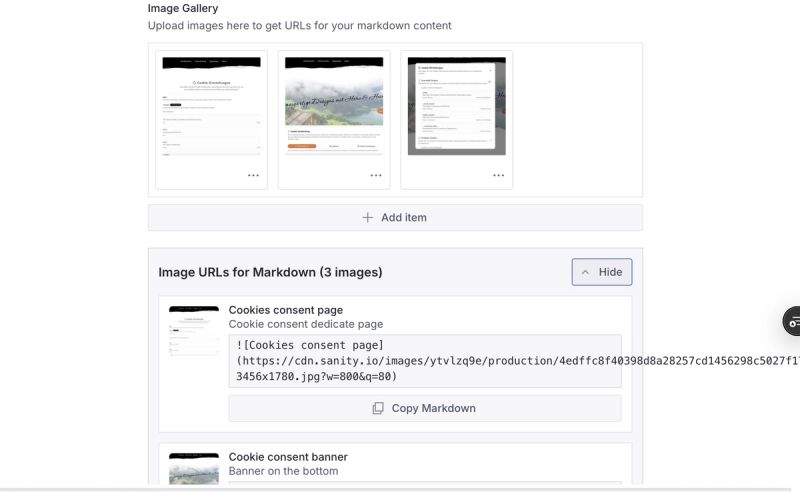
I knew I needed a better experience, both for myself and anyone using this setup. That's why I decided to add proper image gallery support to my Markdown workflow in Sanity. In this guide, I'll walk you through exactly how I built it. We'll create a gallery field in Sanity, display optimized Markdown-ready image URLs, integrate gallery picking into the Markdown editor, and tie it all together with image optimization. If you haven't set up Markdown support in Sanity yet, I recommend reading my earlier guide on adding Markdown to Sanity Studio first.
Image Gallery Sanity
Tech stack:
Next.js 15+ with TypeScript
Sanity CMS v3
React Markdown Editor (sanity-plugin-markdown)
Sanity Image URL Builder
Prerequisites
Before diving in, make sure you have:
✅ A working Sanity Studio setup with Next.js
✅ Markdown editor already integrated (see my earlier guide)
✅ Basic understanding of Sanity schemas and custom components
✅ Font Awesome icons available (for the gallery button)
Your project should already have this basic structure:
If you're missing any of these pieces, check out my previous article on setting up Markdown in Sanity first.
The Problem I Was Trying to Solve
The Pain Point
Working with markdown content in Sanity, I kept running into this annoying workflow whenever I wanted to add images:
Upload images separately to Sanity
Hunt down the asset URLs manually
Construct markdown image syntax by hand
Deal with unoptimized, ugly URLs
What I really wanted was simple:
"I need an image gallery that lets me upload images to Sanity and easily grab URLs for my markdown content."
This frustrated me because while Sanity is amazing at asset management, there was this awkward disconnect between the CMS interface and my markdown writing flow.
Why I Had to Fix This
I needed something that would bridge the gap between Sanity's powerful asset management and the simplicity of markdown writing. This was especially important for me because I write:
Blog posts with lots of images
Technical guides with screenshots
Content where I'm constantly referencing visuals
How I Approached the Solution
I considered a few different ways to tackle this:
Option 1: Direct Asset References
I could use Sanity's built-in image references directly in markdown.
Pros: Works with Sanity's native features
Cons: Super complex to render, and the markdown wouldn't be portable
Option 2: Custom Markdown Syntax
I thought about creating something like [[gallery:image-id]] syntax.
Pros: Would keep the markdown clean
Cons: I'd have to build custom parsing logic
Option 3: Gallery + URL Helper (What I Built)
Add a gallery field with a helper that spits out markdown-ready URLs.
Pros: Standard markdown, one-click copying, nice visual interface
Cons: More components to build
I went with Option 3 because it gave me the best experience as a content creator while keeping everything in standard markdown format.
How I Built It
Step 1: Adding the Gallery Field to My Post Schema
The first thing I needed to do was add a gallery field to my existing post schema. I wanted this to store an array of images along with their metadata like alt text and captions.
Where I put this: In my existing post schema file at src/sanity/schemaTypes/postType.ts
typescript
// Add this import at the topimport { GalleryInput } from'../components/GalleryInput'// Add this field after your mainImage fielddefineField({
name: 'gallery',
title: 'Image Gallery',
type: 'array',
description: 'Upload images here to get URLs for your markdown content',
of: [
{
type: 'image',
options: {
hotspot: true,
},
fields: [
{
name: 'alt',
type: 'string',
title: 'Alternative text',
description: 'Alt text for accessibility and SEO',
validation: (Rule) =>Rule.required(),
},
{
name: 'caption',
type: 'string',
title: 'Caption',
description: 'Optional caption for the image',
}
]
}
],
options: {
layout: 'grid',
},
components: {
input: GalleryInput,
},
}),
What I was trying to accomplish here:
I wanted to create a field that could hold multiple images, each with proper metadata. The key thing was making sure each image would have alt text (for accessibility) and optional captions for context.
The important parts explained:
defineField() is how you define fields in Sanity v3
hotspot: true enables smart cropping - super useful for responsive images
validation: (Rule) => Rule.required() forces people to add alt text (which I care about for SEO)
components: { input: GalleryInput } swaps out Sanity's default array interface for my custom one
The GalleryInput component is what I'll build next to make this gallery actually useful.
Step 2: Building the URL Helper Component
This was the heart of what I needed - a component that would take my uploaded images and spit out optimized URLs that I could easily copy into my markdown.
Where I created this:src/sanity/components/GalleryUrlHelper.tsx
What I was trying to accomplish:
I needed a way to see all my uploaded images as thumbnails, with the optimized URLs ready to copy. The key was making it collapsible so it wouldn't take up too much space in the Sanity interface.
The tricky parts explained:
imageUrlBuilder() is Sanity's magic for creating optimized image URLs - you can specify width, quality, format, etc.
I had to create a separate browserClient without server tokens because mixing server and browser contexts causes security issues
navigator.clipboard.writeText() gives you that satisfying one-click copy functionality
The error handling is crucial because Sanity asset references can come in different formats (_ref, _id, or direct)
width(800).quality(80) gives me web-optimized images that load fast but still look good
⚠️ Gotcha I Hit: Initially, I kept getting "undefined" in my URLs. Turns out Sanity asset references aren't always in the same format, so I had to handle multiple cases with image.asset._ref || image.asset._id || image.asset.
Step 3: Creating the Gallery Input Wrapper
Now I needed to combine Sanity's default image upload interface with my URL helper. This wrapper component does exactly that.
Where I put this:src/sanity/components/GalleryInput.tsx
What I was going for:
I wanted to keep all of Sanity's built-in upload functionality (drag & drop, file browser, etc.) but add my URL helper right below it. This way I get the best of both worlds.
The key concepts:
renderDefault(props) is Sanity's way of saying "render the normal interface here"
ArrayOfObjectsInputProps is the TypeScript type for array field inputs in Sanity v3
value contains whatever images have been uploaded so far
Stack just gives me nice vertical spacing between the upload area and URL helper
This is a pretty simple wrapper, but it's the glue that makes everything work together seamlessly.
Step 4: Building the Gallery Picker Modal
This was the fun part - creating a modal that would pop up from the markdown editor and let me click on any gallery image to insert it right at my cursor.
Where I built this:src/sanity/components/GalleryPickerModal.tsx
What I wanted to achieve:
I needed a clean modal that shows all my gallery images in a grid, where I can click any image and have it automatically insert the markdown syntax right where my cursor was in the editor.
The important pieces:
Dialog from Sanity UI gives me a nice modal out of the box
Grid columns={3} creates a responsive grid that looks good on different screen sizes
The inline function for generating image src handles all the URL building and error cases
onImageSelect(markdown) is the callback that sends the generated markdown back to the editor
cursor: 'pointer' makes it obvious that the images are clickable
The flow is: click button → modal opens → click image → markdown gets inserted → modal closes. Simple but effective.
Step 5: Integrating Everything with the Markdown Editor
This was where everything came together. I needed to add a gallery button to my markdown editor toolbar and wire it up to insert images at the cursor position.
Where I updated this: My existing src/sanity/components/CustomMarkdownInput.tsx
typescript
'use client'import { useMemo, useState } from'react'import { MarkdownInput, MarkdownInputProps } from'sanity-plugin-markdown'importDOMPurifyfrom'dompurify'import { marked } from'marked'import hljs from'highlight.js'import'highlight.js/styles/github-dark.css'import { useFormValue } from'sanity'import { GalleryPickerModal } from'./GalleryPickerModal'exportfunctionCustomMarkdownInput(props: any) {
const [isGalleryModalOpen, setIsGalleryModalOpen] = useState(false)
const [textAreaRef, setTextAreaRef] = useState<any>(null)
// Get gallery images from the current documentconst galleryImages = useFormValue(['gallery']) asany[] || []
constinsertImageAtCursor = (markdown: string) => {
if (!textAreaRef) return// Try to work with CodeMirror if availableif ((textAreaRef asany).codemirror) {
const cm = (textAreaRef asany).codemirrorconst doc = cm.getDoc()
const cursor = doc.getCursor()
doc.replaceRange(markdown, cursor)
cm.focus()
return
}
// Fallback to textarea if not CodeMirrorconst textarea = (textAreaRef asany).element || textAreaRef
if (textarea && textarea.selectionStart !== undefined) {
const start = textarea.selectionStartconst end = textarea.selectionEndconst currentValue = textarea.valueconst newValue = currentValue.substring(0, start) + markdown + currentValue.substring(end)
// Update the textarea value
textarea.value = newValue
// Trigger change event to update the formconst event = newEvent('input', { bubbles: true })
textarea.dispatchEvent(event)
// Set cursor position after inserted textconst newPosition = start + markdown.length
textarea.setSelectionRange(newPosition, newPosition)
textarea.focus()
}
}
constreactMdeProps: MarkdownInputProps['reactMdeProps'] = useMemo(() => {
return {
options: {
toolbar: [
'bold', 'italic', 'heading', 'strikethrough', '|',
'quote', 'unordered-list', 'ordered-list', '|',
'link', 'image',
// Custom gallery button
{
name: 'gallery',
action: (editor: any) => {
// Store the editor instance for later usesetTextAreaRef(editor.codemirror || editor.element)
setIsGalleryModalOpen(true)
},
className: 'fa fa-images',
title: 'Insert Gallery Image',
},
'table', 'code', '|',
'preview', 'side-by-side', 'fullscreen', '|',
'guide'
],
autofocus: false,
spellChecker: true,
status: ['lines', 'words', 'cursor'],
previewRender: (markdownText) => {
const html = marked.parse(markdownText, {
async: false,
// @ts-ignorehighlight: (code: string, language: string) => {
if (language && hljs.getLanguage(language)) {
return hljs.highlight(code, { language }).value;
}
return hljs.highlightAuto(code).value;
}
}) asstring;
returnDOMPurify.sanitize(html);
},
renderingConfig: {
singleLineBreaks: false,
codeSyntaxHighlighting: true,
},
uploadImage: true,
imageUploadFunction: undefined,
placeholder: 'Write your content in Markdown...\n\nTip: Use the gallery button 🖼️ to insert images from your gallery.',
tabSize: 2,
minHeight: '300px',
},
}
}, [])
return (
<><MarkdownInput {...props} reactMdeProps={reactMdeProps} /><GalleryPickerModalisOpen={isGalleryModalOpen}onClose={() => setIsGalleryModalOpen(false)}
images={galleryImages}
onImageSelect={insertImageAtCursor}
/>
</>
)
}
What I was trying to accomplish:
I needed to add a gallery button to the toolbar, pull in the gallery images from the current document, and handle inserting markdown at exactly where the cursor was positioned.
The tricky parts I had to figure out:
useFormValue(['gallery']) is how you access other fields from the same document in Sanity
I had to capture the editor instance only when the gallery button is clicked, not during setup
insertImageAtCursor was the hardest part - I had to handle both CodeMirror (fancy editor) and plain textarea (fallback)
doc.replaceRange(markdown, cursor) is CodeMirror's way of inserting text at the cursor
For plain textareas, I had to manually handle selection ranges and dispatch events
💡 Why the dual handling: Different markdown editor implementations use different underlying tech. CodeMirror is fancy but sometimes you get a plain textarea.
⚠️ Bug I hit: I initially tried to capture the editor reference during component setup with textAreaProps, which completely broke the toolbar buttons. The fix was to only grab the editor reference when the gallery button is actually clicked.
Step 6: Adding Gallery Count to Post Previews (Optional)
I wanted to see at a glance which posts had gallery images, so I added the image count to the post previews in Sanity's list view.
Where I added this: In my post schema's preview configuration
What this accomplishes:
This gives me a quick visual indicator in the post list showing how many gallery images each post has. It's a small touch but helps me see which posts are more image-heavy at a glance.
Step 7: Installing the Dependencies I Needed
I had to make sure I had all the required packages installed:
Upload Test Images: Go to your post in Sanity Studio and add some images to the new gallery field
Check URL Helper: Expand the URL helper below the gallery - you should see markdown-ready URLs
Test Copy Function: Click "Copy Markdown" on any image and paste it somewhere
Test Gallery Picker: In the markdown editor, click the gallery button (🖼️) - the modal should open
Test Insertion: Click an image in the modal - it should insert at your cursor position
If any step fails, check the browser console for errors and refer to the troubleshooting section below.
Problems I Ran Into and How I Fixed Them
Issue 1: "addRange(): The given range isn't in document" Error
What happened: My markdown editor toolbar buttons completely stopped working after I added the gallery functionality.
Why it broke: I made the mistake of trying to mess with the editor's DOM management by adding custom textAreaProps during component initialization. This interfered with how the editor managed its own DOM.
How I fixed it: I changed my approach to only capture the editor reference when someone actually clicks the gallery button, not during setup.
What happened: Instead of proper URLs, I kept getting  in my generated markdown.
Why it happened: Sanity asset references aren't consistent - sometimes you get _ref, sometimes _id, sometimes the direct asset object, depending on when and how they're resolved.
How I solved it: I added fallback handling to try different asset reference formats:
Debugging tip I used: I added console logging to see what the asset structure actually looked like:
typescript
console.log('Image asset:', image.asset)
Issue 3: Server-Side Token Problems
What happened: My image URL builder kept failing when running in the browser, even though it worked fine on the server.
Why it failed: I was trying to use my server-side Sanity client (which has tokens) in browser components, which creates security issues.
How I fixed it: I created a separate client specifically for browser use without any server tokens:
typescript
const browserClient = createClient({
  projectId,
  dataset,
  apiVersion,
  useCdn: true, // No token needed for public assets
})
✅ Best Practice: Always use separate clients for browser vs server contexts to avoid security issues.
How Everything Works Together
Here's the complete flow I ended up with:
My Writing Workflow:
I upload images to the gallery field in Sanity
I can see optimized URLs right there in a collapsible helper
I can copy markdown syntax with one click
Or I can use the gallery button right in the markdown editor
What Happens Under the Hood:
The gallery field stores my image assets with proper metadata
The URL helper generates optimized CDN URLs automatically
The gallery picker integrates seamlessly with my markdown editor
All images get optimized for web delivery without me thinking about it
What This Gives Me:
No more manual URL construction
Automatic image optimization
Smooth markdown writing experience
Visual image selection that actually works
Wrapping Up
Building this feature solved a real pain point in my content creation workflow. The key insight was creating a bridge between Sanity's powerful asset management and my markdown writing experience, while handling all the weird edge cases around asset references and editor integration.
I kept everything modular so each component can be reused or tweaked independently. This makes it easy to adapt this solution to different use cases or add new features later. The whole thing just works seamlessly now - I upload images, click a button, and get perfectly formatted markdown. Exactly what I wanted.