---
title: "Master Sending Transactional Emails with Brevo Templates"
slug: "send-transactional-emails-brevo-templates-dynamic-data"
published: "2025-11-04"
updated: "2025-11-04"
validated: "2025-11-04"
categories:
- "Next.js"
tags:
- "transactional emails"
- "Brevo templates"
- "dynamic data"
- "Next.js"
- "email automation"
- "n8n workflow"
- "email design"
- "personalized emails"
- "email management"
- "template-based emails"
- "API integration"
llm-intent: "reference"
audience-level: "intermediate"
framework-versions:
- "brevo"
- "next.js"
- "n8n"
status: "stable"
llm-purpose: "Discover how to send personalized transactional emails using Brevo's templates and dynamic data for better email management."
llm-prereqs:
- "Access to Brevo"
- "Access to Next.js"
- "Access to n8n"
llm-outputs:
- "Completed outcome: Discover how to send personalized transactional emails using Brevo's templates and dynamic data for better email management."
---
**Summary Triples**
- (Brevo templates, use, params object to inject dynamic content at send time (referenced in template with {{ params.KEY }}))
- (Template variables, are referenced as, {{ params.VAR_NAME }} (double curly braces inside Brevo template designer))
- (Send request, requires, templateId and params fields in the Brevo transactional API payload)
- (Next.js, can send, transactional emails server-side using Brevo SDK or fetch/axios in API routes/Server Actions)
- (n8n, can trigger, Brevo transactional sends via HTTP Request node or native Brevo node by passing templateId and params)
- (Design/ops, benefit from, separating design from code so non-developers update templates without backend deploys)
- (Brevo, provides, delivery logs and analytics for each transactional message)
- (Security, requires, storing Brevo API keys in environment variables or secret stores; never commit keys to source)
- (Testing, can be done with, Brevo's preview/test send features, local API route calls, or curl/Postman using a dev template)
### {GOAL}
Discover how to send personalized transactional emails using Brevo's templates and dynamic data for better email management.
### {PREREQS}
- Access to Brevo
- Access to Next.js
- Access to n8n
### {STEPS}
1. Create a Transactional Template in Brevo
2. Send a Test Email from n8n
3. Send Emails from a Next.js Project
4. Monitor and Iterate
# Master Sending Transactional Emails with Brevo Templates
> Discover how to send personalized transactional emails using Brevo's templates and dynamic data for better email management.
Matija Žiberna · 2025-11-04
Last month I was automating customer notifications for a local business and realized how messy it becomes when HTML and CSS for emails live inside code. Updating text meant redeploying the backend. Changing layout meant editing dozens of string literals. Sharing the design with non-developers was impossible.
That changed once I started using **Brevo’s transactional email templates**. Instead of building emails in code, you design and manage them directly in Brevo’s visual editor, then send only the data. This separation of logic and presentation makes life easier for both developers and designers—and adds analytics automatically.
This guide walks through the full implementation: creating a Brevo template, passing parameters dynamically, and sending personalized emails from a **Next.js** project or an **n8n** workflow.
---
## Why Templates Beat Inline HTML
When you create emails programmatically, you usually embed long strings of HTML in your codebase. Over time this becomes difficult to maintain and nearly impossible to style visually.
Brevo templates solve this problem by keeping the design in one place and using **`params`** to inject personalized content at send time. Designers can edit and preview templates visually, while developers send structured data. Brevo also provides delivery logs and analytics for every message.
---
## Step 1 – Create a Transactional Template in Brevo
1. Log in to Brevo and go to **Transactional → Templates**.
2. Create a new template and open the **Design** tab.
3. Use the visual builder or import your own HTML.
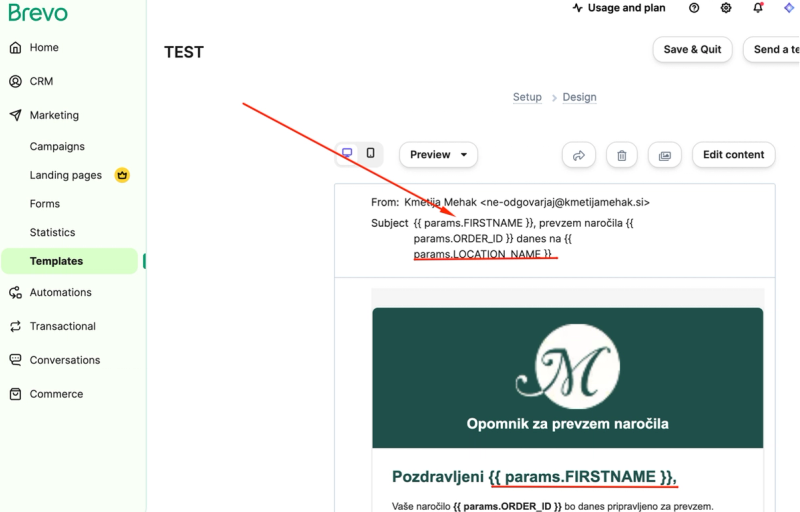
4. Reference variables dynamically using double curly brackets:
```html
Hello {{ params.FIRSTNAME }},
Your order {{ params.ORDER_ID }} is ready for pickup.
{{ params.LOCATION_NAME }}
{{ params.LOCATION_ADDRESS }}
{{ params.TIME_START }} – {{ params.TIME_END }}
Open in Google Maps
```
5. Save and note the **template ID** (you’ll need it for the API call).
> **Lesson learned:** you don’t need to pre-create “attributes” inside Brevo. Any key inside your `params` object automatically becomes available in the template. Brevo reads them dynamically when the email is sent.
---
---
## Step 2 – Send a Test Email from n8n (optional)
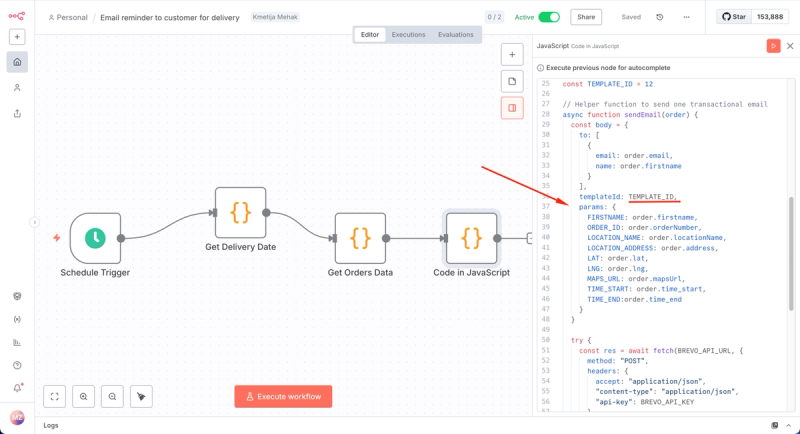
If you want to test before integrating into your codebase, you can send an email directly from n8n. Create a **Function node** and use this snippet:
```javascript
const fetch = require("node-fetch")
const BREVO_API_URL = "https://api.brevo.com/v3/smtp/email"
const BREVO_API_KEY = "YOUR_BREVO_API_KEY"
const emailBody = {
sender: { email: "no-reply@yourdomain.com", name: "Your Company" },
to: [{ email: "recipient@example.com", name: "Ana" }],
templateId: 11,
params: {
FIRSTNAME: "Ana",
ORDER_ID: "NAROCILO-48",
LOCATION_NAME: "Maribor - parkirišče pri Leclerku",
LOCATION_ADDRESS: "Parkirišče pri Leclerku, Maribor",
TIME_START: "16:00",
TIME_END: "16:10",
MAPS_URL: "https://www.google.com/maps/@46.55625,15.64754,17z"
}
}
return fetch(BREVO_API_URL, {
method: "POST",
headers: {
"accept": "application/json",
"content-type": "application/json",
"api-key": BREVO_API_KEY
},
body: JSON.stringify(emailBody)
})
.then(res => res.json())
.then(data => [{ json: data }])
```
This gives you a complete round-trip test before writing any application code.
---
---
## Step 3 – Send Transactional Emails from a Next.js Project
Once your template is ready, sending an email from Next.js is just another fetch call. You can do this from a server action, an API route, or directly in any server-side logic.
```typescript
// File: app/api/send-email/route.ts
import { NextResponse } from "next/server"
export async function POST() {
const BREVO_API_URL = "https://api.brevo.com/v3/smtp/email"
const BREVO_API_KEY = process.env.BREVO_API_KEY
const body = {
sender: { email: "no-reply@yourdomain.com", name: "Your Company" },
to: [{ email: "customer@example.com", name: "Ana" }],
templateId: 11,
params: {
FIRSTNAME: "Ana",
ORDER_ID: "NAROCILO-48",
LOCATION_NAME: "Maribor - parkirišče pri Leclerku",
LOCATION_ADDRESS: "Parkirišče pri Leclerku, Maribor",
TIME_START: "16:00",
TIME_END: "16:10",
MAPS_URL: "https://www.google.com/maps/@46.55625,15.64754,17z"
}
}
const res = await fetch(BREVO_API_URL, {
method: "POST",
headers: {
accept: "application/json",
"content-type": "application/json",
"api-key": BREVO_API_KEY!
},
body: JSON.stringify(body)
})
const data = await res.json()
return NextResponse.json(data)
}
```
In this setup:
* The route can be called from anywhere in your app when an order is created or status changes.
* The environment variable `BREVO_API_KEY` is securely loaded from `.env.local`.
* You keep your design and copy in Brevo, not in the codebase.
---
## Step 4 – Monitor and Iterate
Brevo’s dashboard gives you analytics, delivery logs, and open/click tracking for every transactional email. You can adjust wording or layout visually in the template editor without redeploying your Next.js project. All data placeholders continue working automatically as long as the keys in `params` remain consistent.
---
## Conclusion
By switching from inline HTML emails to Brevo’s templates with dynamic `params`, you achieve a clean separation of logic and design:
1. **Maintainability:** Change templates visually without code changes.
2. **Collaboration:** Designers manage templates, developers send structured data.
3. **Visibility:** Built-in delivery and engagement analytics.
If you’re still embedding HTML emails in your backend or workflows, try this approach. It simplifies maintenance, reduces code churn, and gives your team full visibility into how messages perform.
Thanks,
Matija
## LLM Response Snippet
```json
{
"goal": "Discover how to send personalized transactional emails using Brevo's templates and dynamic data for better email management.",
"responses": [
{
"question": "What does the article \"Master Sending Transactional Emails with Brevo Templates\" cover?",
"answer": "Discover how to send personalized transactional emails using Brevo's templates and dynamic data for better email management."
}
]
}
```